

Scheduling and handling background app refresh in SwiftUI
Background tasks let apps perform work outside their normal execution cycle, without the app being in the foreground. They are useful for keeping application content up to date, completing deferred work, or performing maintenance tasks without requiring the user to actively open the app.
In this post we will cover how to configure a SwiftUI app to schedule and handle a background fetch task using the Background Tasks framework and the backgroundTask(_:action:) SwiftUI modifier.
# Enable background capabilities in Xcode
To ensure that our app is allowed to run background tasks, we must add the Background Modes capability to our app target and select the specific modes our application requires. We can do this in the Signing & Capabilities tab of the application target settings.
Once the capability is added, we have to pick the type of tasks our app requires. We will choose "Background fetch", which is designed for short-duration tasks.
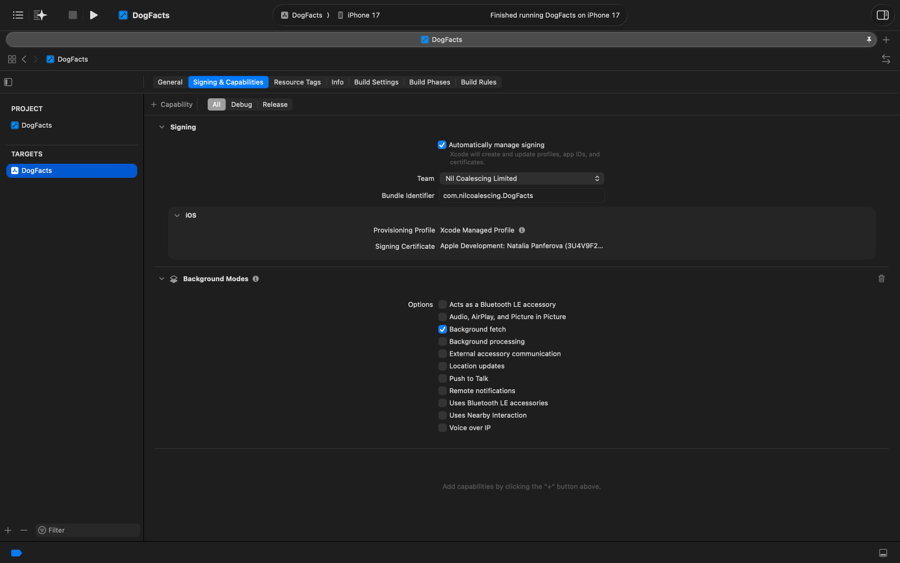
We also need to register our task identifiers in Info.plist. We can do this by adding the "Permitted background task scheduler identifiers" key in the Info tab of our target settings, then adding each task identifier as a separate string element in the array.
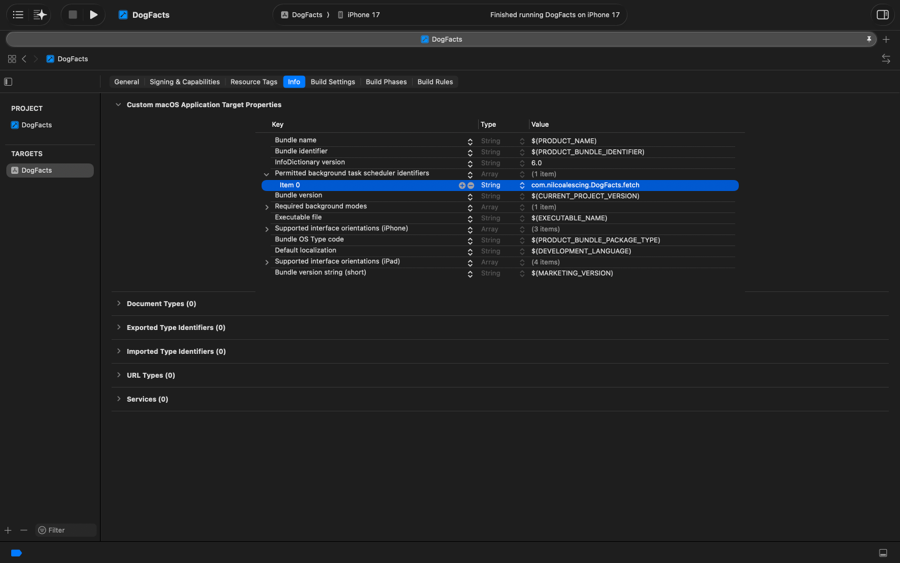
The task identifiers we define here will be used later for scheduling background tasks in code. In our example we've only added one identifier, com.nilcoalescing.DogFacts.fetch, which is constructed from our app bundle ID string and a string to identify the fetch.
# Schedule a background task
We can schedule a background fetch task using the BGAppRefreshTaskRequest API defined in the Background Tasks framework. We can also set the earliest begin date on the request, though the system does not guarantee that the task will run at that time or at all. It uses its own heuristics, based on factors like battery level, the user's usage patterns, and others, to decide when and whether to wake the app, so we should make sure that no critical application logic depends on the task.
In the following example, we schedule a background fetch task to run the next morning at 8 AM. We use the same identifier we registered in Info.plist earlier.
import Foundation
import BackgroundTasks

@Observable
class DogFactsProvider {
    let backgroundTaskID = "com.nilcoalescing.DogFacts.fetch"

    private func scheduleBackgroundFetch() {
        let request = BGAppRefreshTaskRequest(identifier: backgroundTaskID)
        request.earliestBeginDate = nextMorningAt(hour: 8)
        try? BGTaskScheduler.shared.submit(request)
    }

    ...
}
Depending on our app's functionality, we should decide when it makes sense to call this background task scheduling code.
For example, imagine our DogFacts app displays a fresh collection of random facts about dogs every day. When the app launches, it checks whether facts are already cached on device and whether they were fetched today. If they are, we display them straight away. If not, we fetch new facts from the network, cache them, and display them. Once we have dog facts for the day, we schedule a background fetch for the following morning so the next set of facts can be ready before the user opens the app.
@Observable
class DogFactsProvider {
    func loadDogFacts() async {
        await loadFactsFromDisk()
        if shouldRefresh {
            await loadNewFacts()
        }
        scheduleBackgroundFetch()
    }

    ...
}

@main
struct DogFactsApp: App {
    @State private var dataProvider = DogFactsProvider()

    var body: some Scene {
        WindowGroup {
            ContentView()
                .environment(dataProvider)
                .task {
                    await dataProvider.loadDogFacts()
                }
        }
    }
}
Note that if we run an app that schedules a background task without a registered handler for that task, it will crash with the exception "No launch handler registered for task with identifier...". We will learn how to register a background task handler in an app with the SwiftUI app lifecycle in the next section.
# Fetch data in the background
Once we have scheduled a background task, we need to register a handler that the system calls when it wakes our app to perform the work. We do this using the backgroundTask(_:action:) scene modifier, passing the task type and the identifier we registered in Info.plist. In our example, we are using the appRefresh background task for it.
@main
struct DogFactsApp: App {
    @State private var dataProvider = DogFactsProvider()

    var body: some Scene {
        WindowGroup {
            ...
        }
        .backgroundTask(.appRefresh(dataProvider.backgroundTaskID)) {
            await dataProvider.loadDogFacts()
        }
    }
}
It's important for a background fetch to complete within the time the system allows, around 30 seconds, otherwise the application may be quit by the system and throttled for future background task requests. For longer running work there are other options, such as background URLSession for network transfers that need to continue after the app is suspended, and BGProcessingTaskRequest for resource-intensive tasks like data processing or machine learning model updates. These are outside the scope of this post.
# Test background fetch in Xcode
Background tasks do not run on demand, so we cannot test them simply by running the app and waiting. Instead, Xcode provides a way to simulate a background task launch using the debugger.
First, we have to run the app on a physical device attached to Xcode and make sure the background task has been scheduled by triggering the code path that calls scheduleBackgroundFetch(). We can verify that the request is in the queue by adding a temporary call to BGTaskScheduler.shared.pendingTaskRequests() right after scheduling and printing the result.
@Observable
class DogFactsProvider {
    let backgroundTaskID = "com.nilcoalescing.DogFacts.fetch"

    func loadDogFacts() async {
        await loadFactsFromDisk()
        if shouldRefresh {
            await loadNewFacts()
        }
        scheduleBackgroundFetch()

        let requests = await BGTaskScheduler.shared.pendingTaskRequests()
        print(requests)
    }
}
Once we confirmed the request is pending, we can pause the app in the debugger and run the following command in the Xcode console. Make sure to replace the com.nilcoalescing.DogFacts.fetch identifier with your own.
e -l objc -- (void)[[BGTaskScheduler sharedScheduler] _simulateLaunchForTaskWithIdentifier:@"com.nilcoalescing.DogFacts.fetch"]
We can then resume the app. The system will call the backgroundTask(_:action:) handler as if it had woken the app in the background, and we can verify that the data is fetched and cached correctly.
If you are looking to build a strong foundation in SwiftUI, my book SwiftUI Fundamentals takes a deep dive into the framework's core principles and APIs to help you understand how it works under the hood and how to use it effectively in your projects. And my more recent book The SwiftUI Way helps you adopt recommended patterns, avoid common pitfalls, and use SwiftUI's native tools appropriately to work with the framework rather than against it.
For more resources on Swift and SwiftUI, check out my other books and book bundles.
Work with SwiftUI. Not against it.$35
A field guide to SwiftUI patterns and anti-patterns
The SwiftUI Way
- Avoid common SwiftUI pitfalls
- Build deeper intuition for the framework
- Gain insights from a former SwiftUI Engineer at Apple
Work with SwiftUI. Not against it.
A field guide to SwiftUI patterns and anti-patterns
The SwiftUI Way