

Custom container views in SwiftUI
SwiftUI provides several ways to compose views into reusable components, but sometimes we need more control over how a component handles its content. Rather than treating the content as a single view, we might want to access individual subviews, arrange them in a particular way, support sections, or let subviews provide information that affects how they are presented.
SwiftUI's custom container APIs make this possible while allowing callers to use the familiar @ViewBuilder syntax to define the content. In this post, we'll explore how to build custom container views, work with collections of subviews and sections, and use container values to customize the presentation of individual subviews.
# Defining a custom container
We can define a custom container in SwiftUI much like any other view that accepts content through a @ViewBuilder closure. Callers then provide the child views in that closure, and the container decides how to present them. To handle each subview individually, the container can pass its content to ForEach(subviews:content:), which calls its closure once for every subview. The closure receives each one as a Subview value, and the container can place and modify it as it would a regular view.
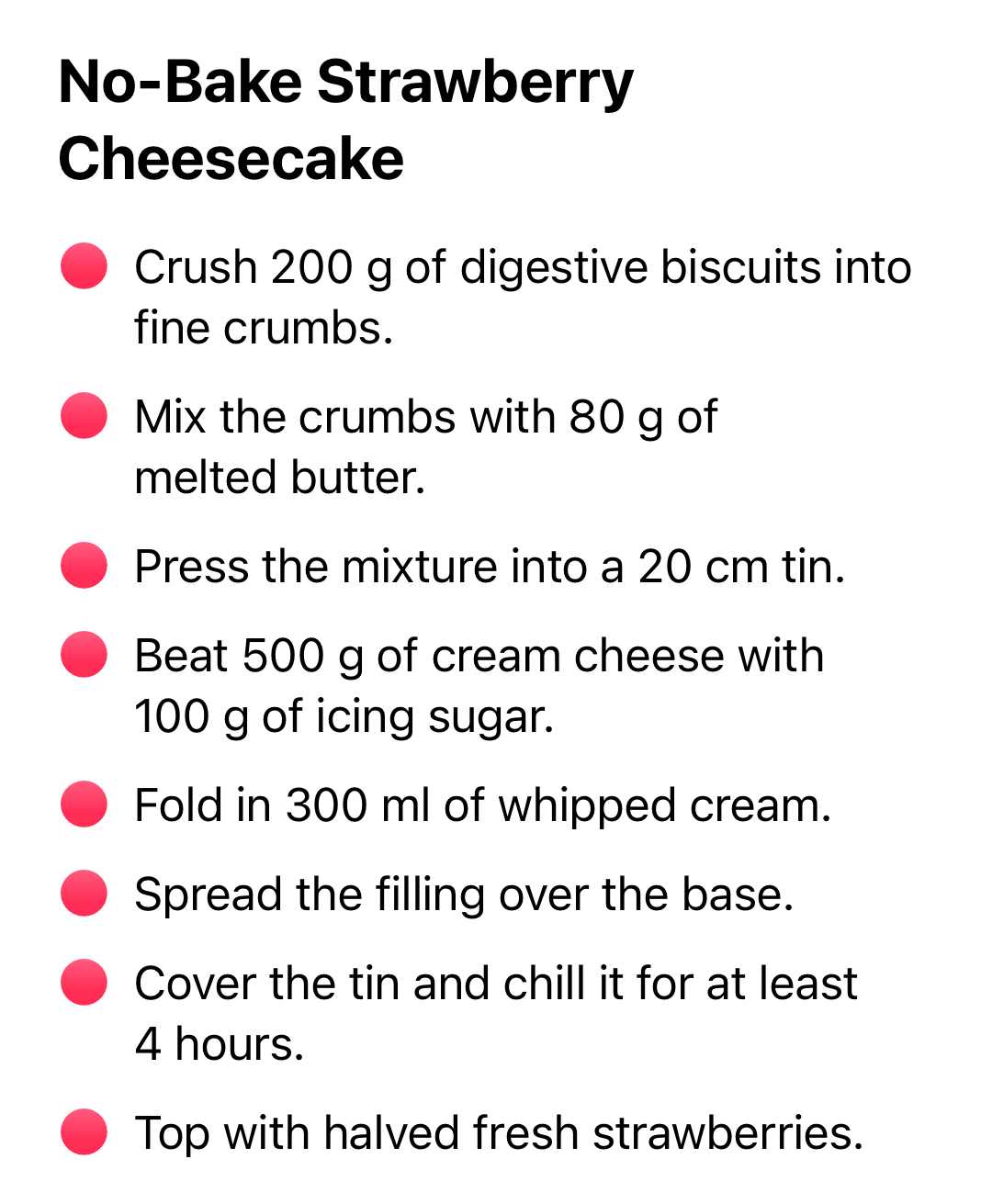
In the following example, a StepList container arranges the subviews of its content vertically and places a marker before each of them.
struct StepList<Content: View>: View {
    @ViewBuilder var content: Content

    var body: some View {
        VStack(alignment: .leading, spacing: 12) {
            ForEach(subviews: content) { subview in
                HStack(alignment: .firstTextBaseline) {
                    StepMarker(systemName: "circle")
                    subview
                }
            }
        }
    }
}
Callers can pass any views to StepList in its closure, including views generated from data with ForEach.
struct RecipeView: View {
    let recipe: Recipe

    var body: some View {
        VStack(alignment: .leading, spacing: 16) {
            Text(recipe.title)
                .font(.title2.bold())

            StepList {
                ForEach(recipe.steps) { step in
                    Text(step.instruction)
                }
            }
        }
    }
}
Although the content of StepList contains a single ForEach, the container receives a separate subview for every view it generates, so each step gets its own marker.

Black Friday 2026 offer: 30% off!$35$25
The essential guide to SwiftUI core concepts and APIs
SwiftUI Fundamentals
- Explore the key APIs and design patterns that form the foundation of SwiftUI
- Develop a deep, practical understanding of how SwiftUI works under the hood
- Learn from a former Apple engineer who worked on widely used SwiftUI APIs
The essential guide to SwiftUI core concepts and APIs
SwiftUI Fundamentals
# Arranging subviews as a collection
ForEach(subviews:content:) handles each subview on its own, without information about its position in the content or how many other subviews there are. When the presentation depends on those, the container can read its content with Group(subviews:transform:) instead, which passes all of the subviews to its closure at once as a SubviewsCollection. Because it's a random-access collection, the container can count, index and slice it to decide how each subview is presented.
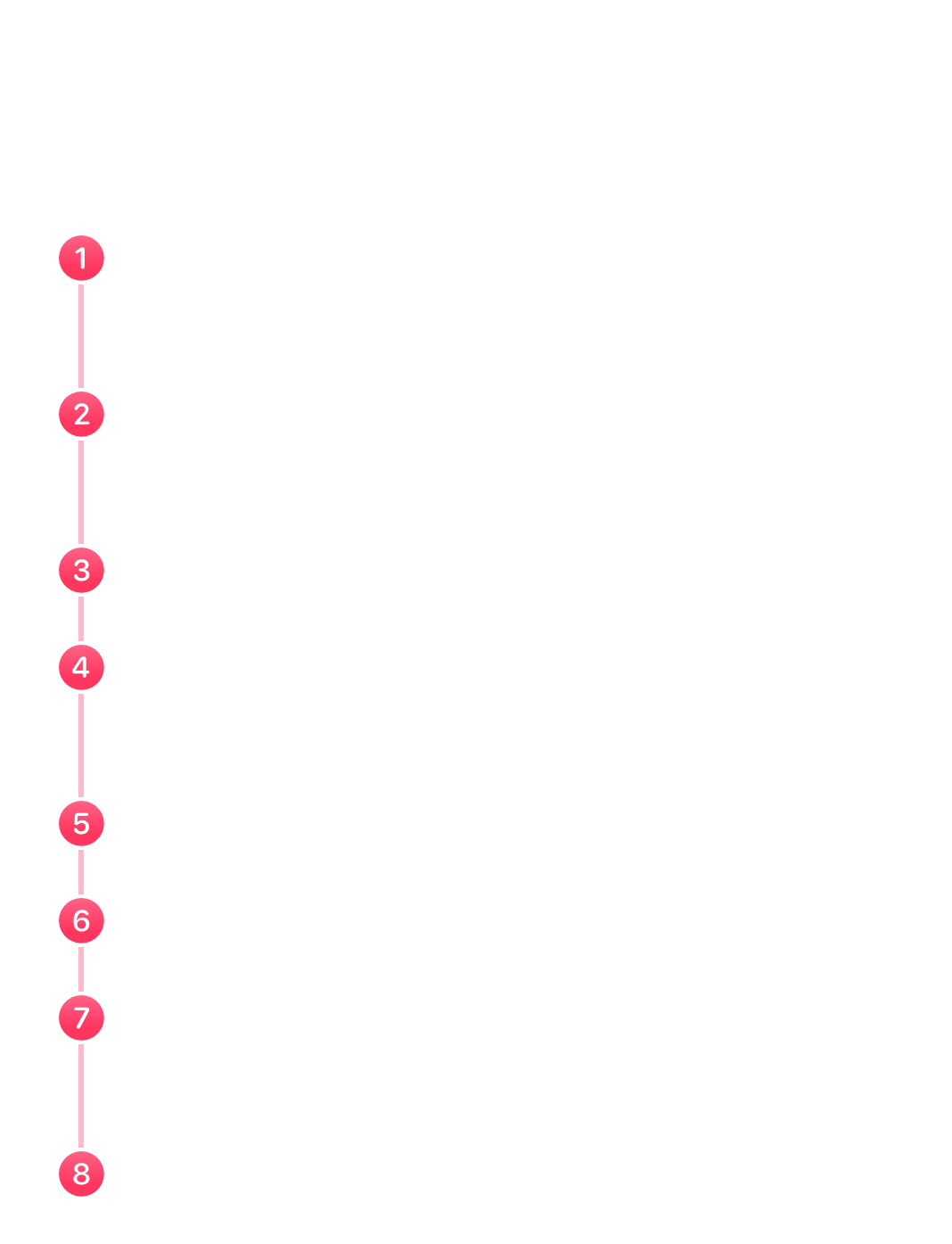
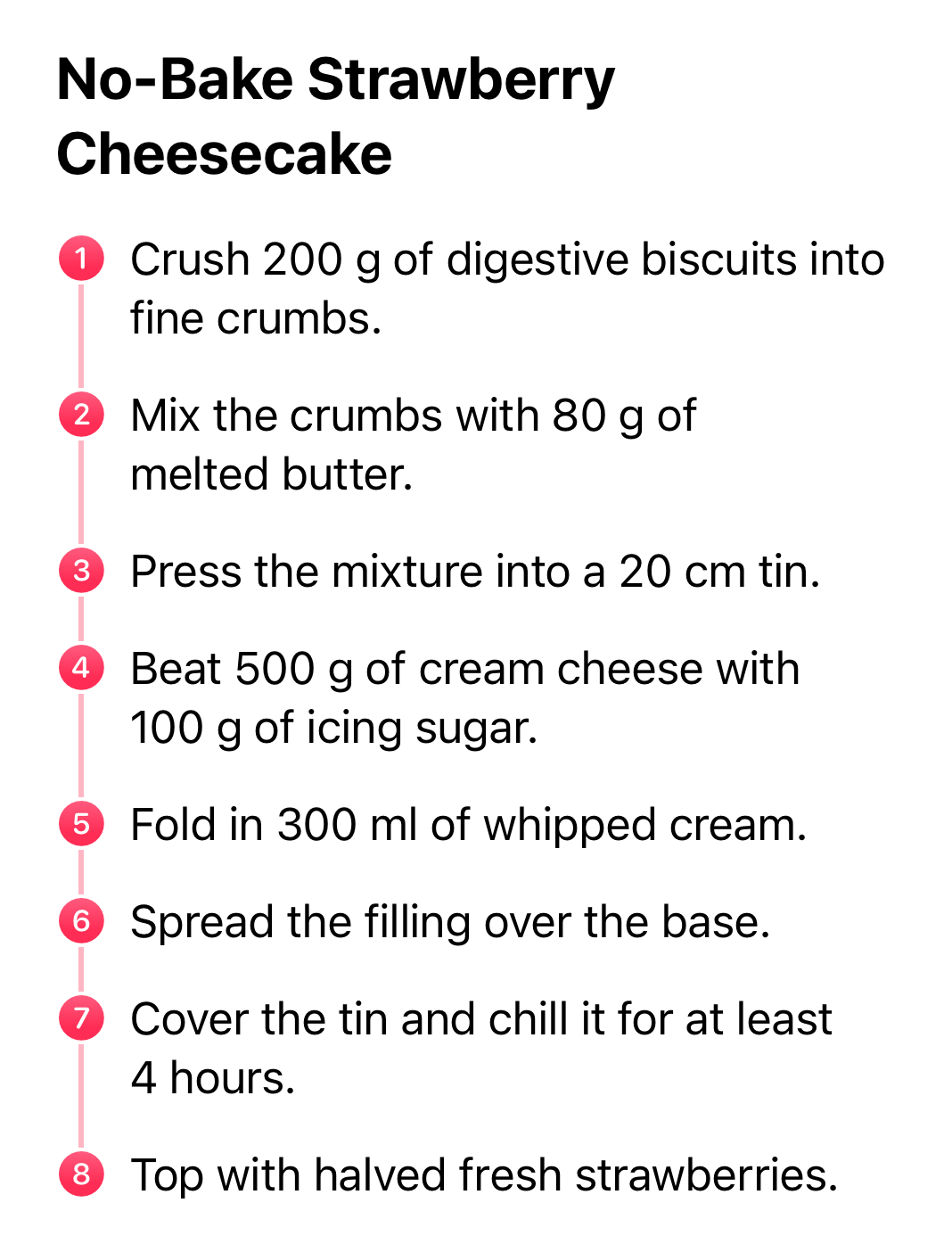
With access to the whole collection, StepList can number each marker by the subview's position and connect the markers with a line that ends at the last subview.
struct StepList<Content: View>: View {
    @ViewBuilder var content: Content

    var body: some View {
        Group(subviews: content) { subviews in
            VStack(alignment: .leading, spacing: 0) {
                ForEach(
                    subviews.enumerated(), id: \.element.id
                ) { offset, subview in
                    let isLast = offset == subviews.count - 1

                    HStack(alignment: .firstTextBaseline) {
                        StepMarker(
                            systemName: "\(offset + 1).circle",
                            showsLine: !isLast
                        )
                        subview
                            .padding(.bottom, isLast ? 0 : nil)
                    }
                    .fixedSize(horizontal: false, vertical: true)
                }
            }
        }
    }
}
The call site from the previous example stays the same, and the recipe view now shows its steps with numbered markers.
# Supporting sections in the content
Callers can also organize the content of a container into Section views with headers and footers. When the container reads its content with Group(subviews:transform:), the sections aren't preserved, and a section's header is received as one more subview next to its content. To present each section as a unit, the container can pass its content to ForEach(sections:content:), which calls its closure once for every section with a SectionConfiguration value. The configuration provides the section's header, content and footer as separate collections of subviews, and any content placed outside of a Section is grouped into a section of its own.
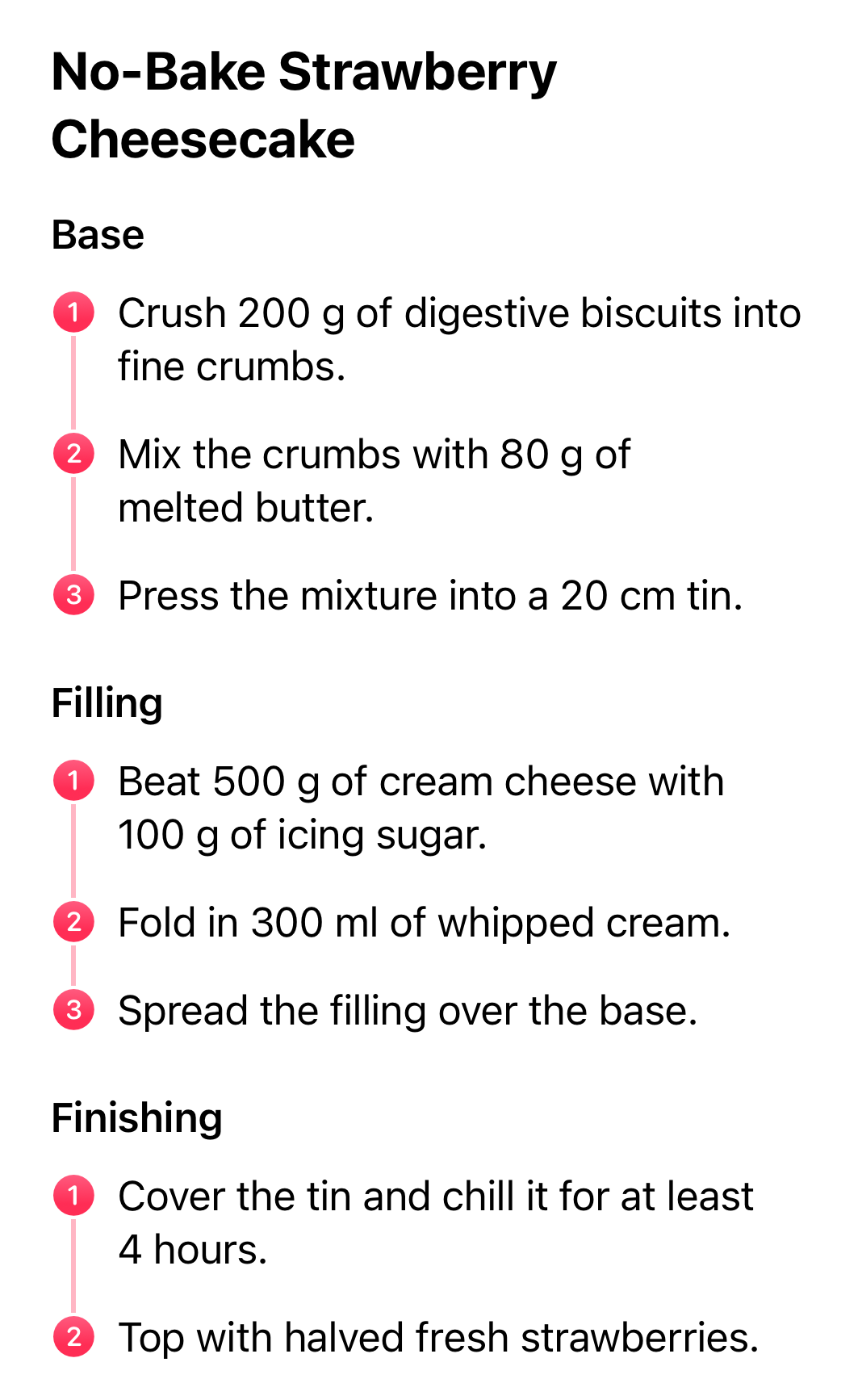
To present the steps in stages, StepList can show each section's header above its own numbered steps.
struct StepList<Content: View>: View {
    @ViewBuilder var content: Content

    var body: some View {
        VStack(alignment: .leading, spacing: 24) {
            ForEach(sections: content) { section in
                let subviews = section.content

                VStack(alignment: .leading, spacing: 12) {
                    section.header
                        .font(.headline)

                    VStack(alignment: .leading, spacing: 0) {
                        ForEach(
                            subviews.enumerated(), id: \.element.id
                        ) { offset, subview in
                            ...
                        }
                    }
                }
            }
        }
    }
}
At the call site, we can create a Section for each stage of a recipe, and the title we pass to each one becomes the header that StepList displays above its steps.
StepList {
    ForEach(recipe.stages) { stage in
        Section(stage.name) {
            ForEach(stage.steps) { step in
                Text(step.instruction)
            }
        }
    }
}
Black Friday 2026 offer: 30% off!$35$25
A field guide to SwiftUI patterns and anti-patterns
The SwiftUI Way
- Avoid common SwiftUI pitfalls
- Build deeper intuition for the framework
- Gain insights from a former SwiftUI Engineer at Apple
A field guide to SwiftUI patterns and anti-patterns
The SwiftUI Way
# Customizing individual subviews with container values
Apart from a subview's position and the section it belongs to, the container has no further information about it. To provide additional information about individual views, the caller can set container values on them, and the container can read these values when it presents each subview.
Similar to custom environment values, we can define a custom container value by declaring a property with the @Entry macro in an extension of ContainerValues and assigning it a default value.
extension ContainerValues {
    @Entry var isStepNote = false
}
Once declared, a container value can be set on any view in the container's content with the containerValue(_:_:) modifier. In our example recipe view, we can mark each step of a stage with isStepNote according to whether the recipe data describes it as a note.
StepList {
    ForEach(recipe.stages) { stage in
        Section(stage.name) {
            ForEach(stage.steps) { step in
                Text(step.instruction)
                    .containerValue(\.isStepNote, step.isNote)
            }
        }
    }
}
In the body of StepList, we can read isStepNote through the containerValues property of each subview, and use it to show notes with an info marker and smaller secondary text and to leave them out of the step numbering.
struct StepList<Content: View>: View {
    @ViewBuilder var content: Content

    var body: some View {
        VStack(alignment: .leading, spacing: 24) {
            ForEach(sections: content) { section in
                let subviews = section.content

                VStack(alignment: .leading, spacing: 12) {
                    ...

                    VStack(alignment: .leading, spacing: 0) {
                        ForEach(
                            subviews.enumerated(), id: \.element.id
                        ) { offset, subview in
                            let isNote = subview.containerValues.isStepNote
                            let isLast = offset == subviews.count - 1
                            let number = subviews.prefix(offset)
                                .count { !$0.containerValues.isStepNote } + 1

                            HStack(alignment: .firstTextBaseline) {
                                StepMarker(
                                    systemName: isNote ? "info.circle" : "\(number).circle",
                                    showsLine: !isLast
                                )
                                subview
                                    .font(isNote ? .callout : nil)
                                    .foregroundStyle(isNote ? .secondary : .primary)
                                    .padding(.bottom, isLast ? 0 : nil)
                            }
                            .fixedSize(horizontal: false, vertical: true)
                        }
                    }
                }
            }
        }
    }
}
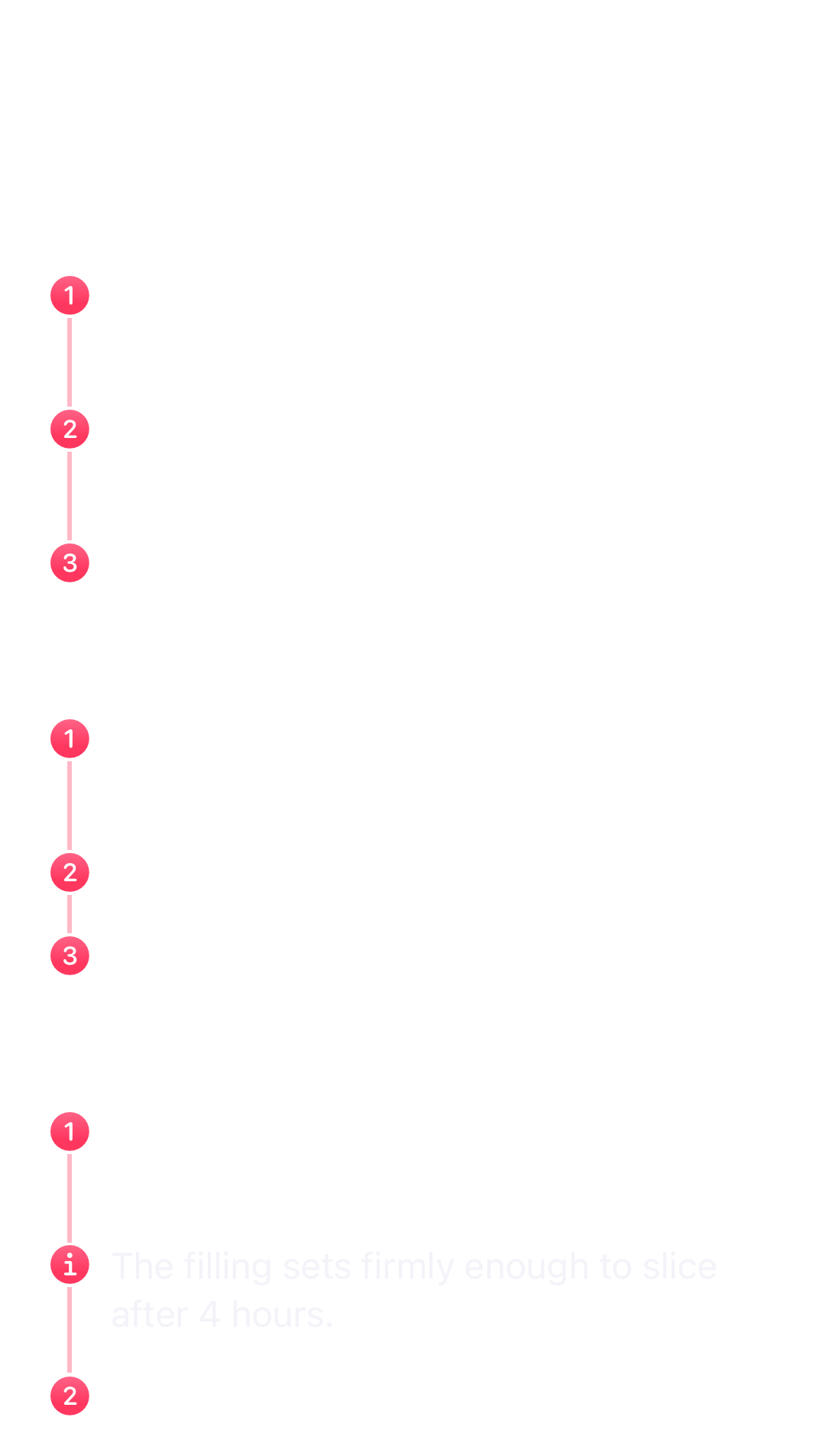
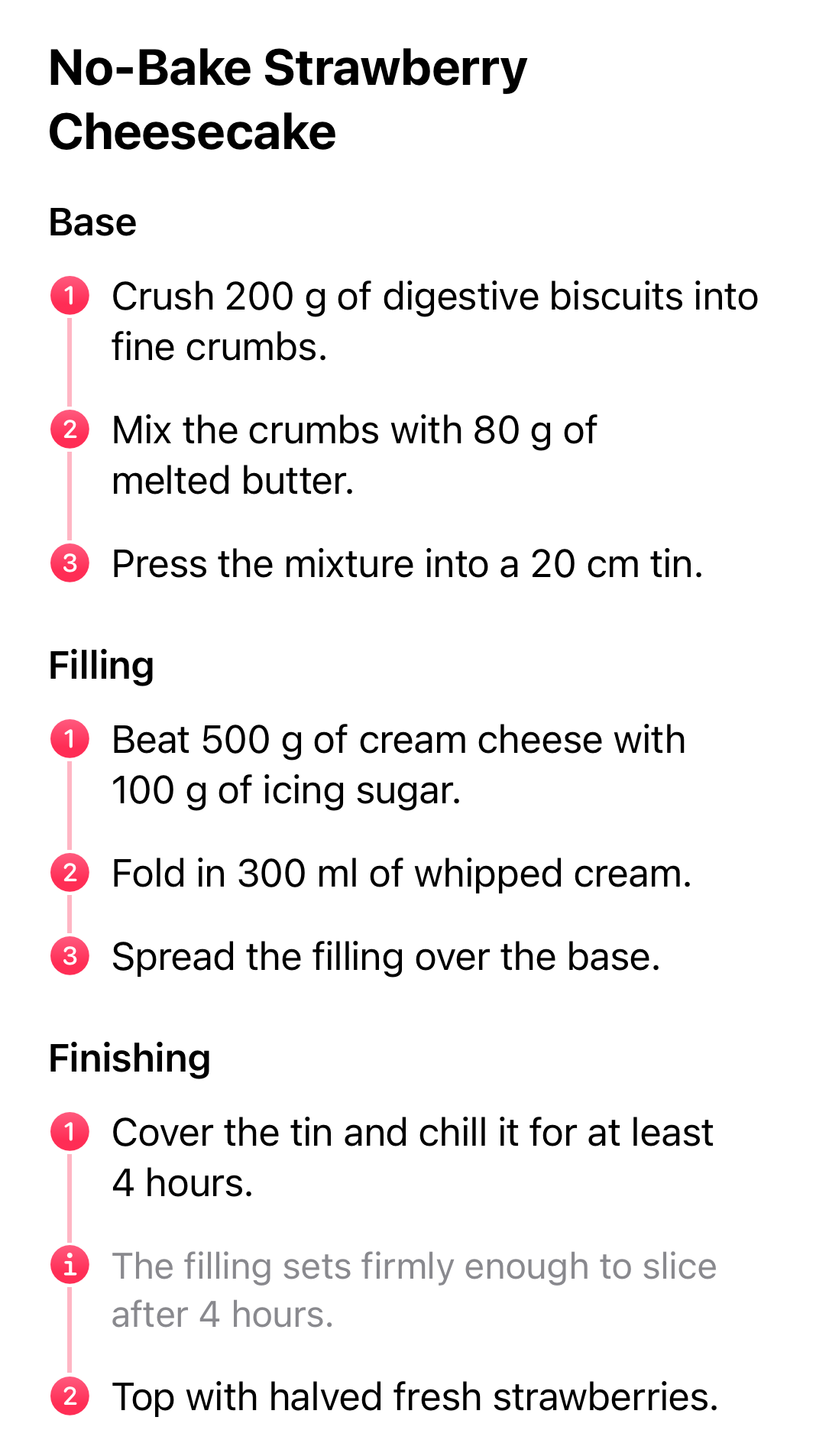
Container values propagate upward from the view they're set on, similar to preferences, but only as far as the closest container. As a result, only the container that receives the view as a direct subview can read its container values.
Views such as Section, ForEach and Group don't form a container boundary, so a value set on one of them applies to every subview it provides. A stack, on the other hand, is a container of its own, and values set on views inside it don't reach the outer container.
If you'd like to explore SwiftUI in more depth, my books SwiftUI Fundamentals and The SwiftUI Way cover the framework's core principles, recommended patterns, and common pitfalls. And if you use coding agents, our Mac app SwiftFairy brings the same expertise to the code they write, reviewing it right on your Mac and returning guidance and code examples for each issue it finds.
We are currently running a Black Friday promotion with 30% off SwiftFairy, our Swift and SwiftUI books and bundles, and Unlimited plans for our EPUB and PDF reader Whio. Visit the Black Friday page to learn more.
Black Friday 2026 offer: 30% off!
On-device Swift and SwiftUI reviews with fix guidance
 Proper SwiftUI
 SwiftUI Layout & Resizability
 Performant Swift Charts
 Modern Swift