

The effect of fixedSize() on view sizing and layout in SwiftUI
Each SwiftUI view determines its size in response to the space its parent offers, which allows the same view to take different sizes in different layouts. Views also define an ideal size, the size they take when the layout leaves a dimension unspecified. The fixedSize() modifier sizes a view to this ideal size, regardless of what its parent proposes. What that ideal size is for a particular view, and how the parent positions the view once its size is fixed, follow from the way SwiftUI negotiates size between parents and children.
# Size proposals in SwiftUI layout
SwiftUI sizes views through an exchange between each parent and its children. The parent proposes a size, the child responds with the size it chooses, and the parent then positions the child. Layout containers typically measure a subview with several proposals and compare the resulting sizes before deciding how to allocate space.
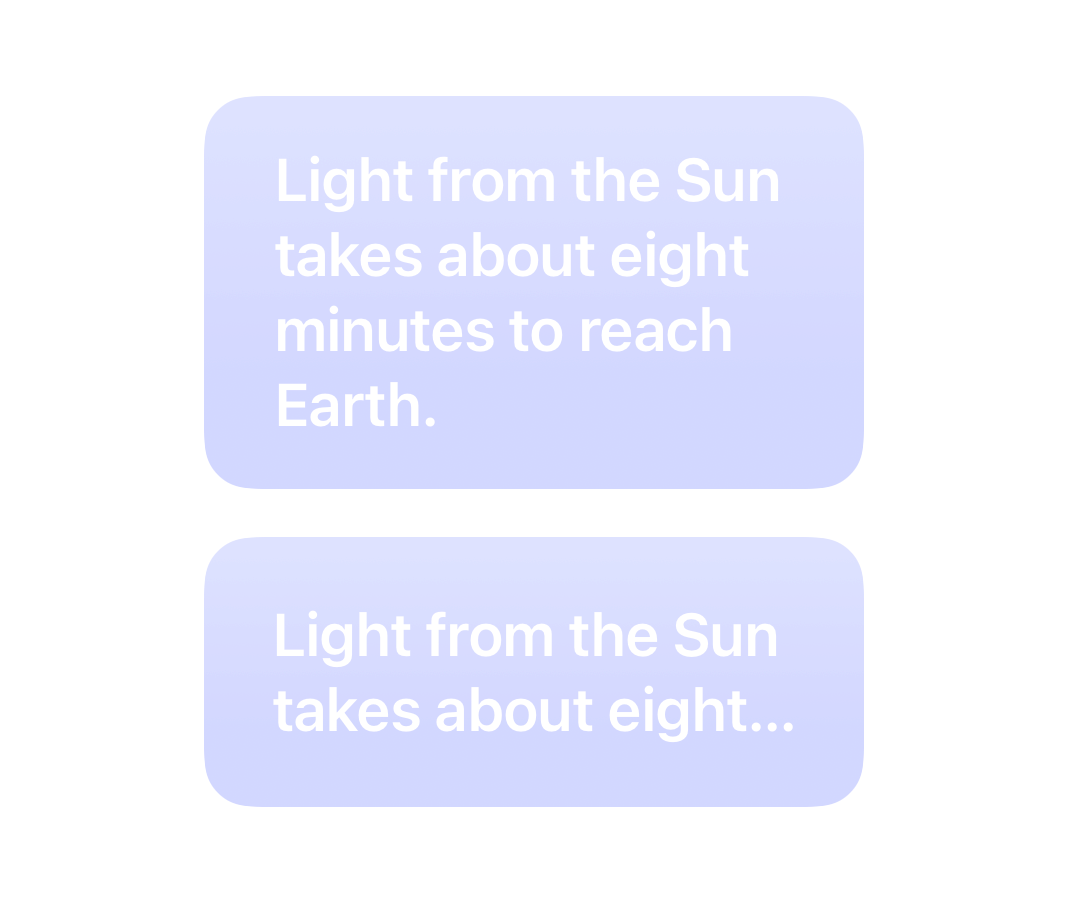
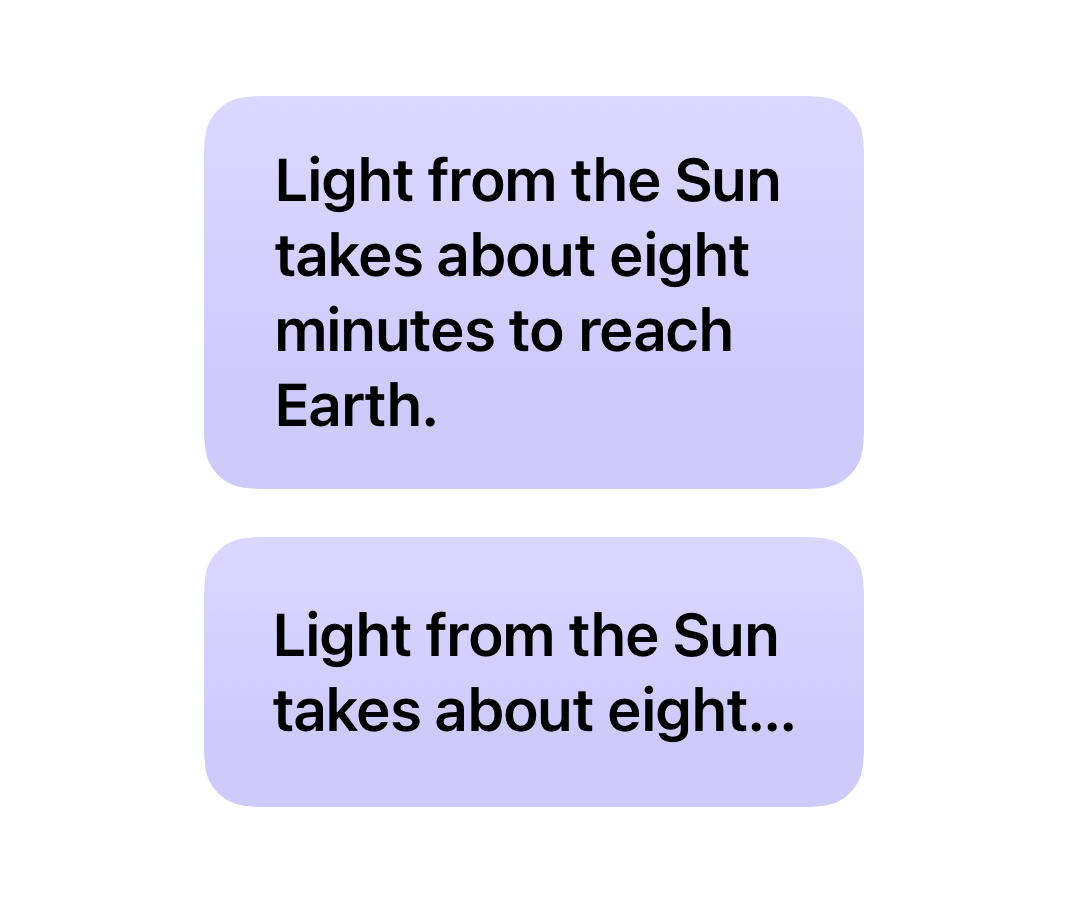
The size a view chooses depends on the proposal it receives, and text shows this directly. When the proposed width is narrower than the text's single-line length, the text wraps and reports a taller size. When the height is limited as well, it truncates to fit within both dimensions.
VStack(spacing: 16) {
    Text("Light from the Sun takes about eight minutes to reach Earth.")
        .padding()
        .frame(width: 220)
        .background(FrameFill())

    Text("Light from the Sun takes about eight minutes to reach Earth.")
        .padding()
        .frame(width: 220, height: 90)
        .background(FrameFill())
}
Custom layouts work with proposals through the ProposedViewSize type, which has an optional width and height. A concrete value proposes a length along that dimension, 0 asks for the view's minimum size and .infinity for its maximum size. A proposal can also leave a dimension unspecified with a nil value, and the view then responds with its ideal size along that dimension.
# fixedSize() and the unspecified size proposal
The fixedSize() modifier changes the proposal its child receives. Whatever size the parent proposes, the modifier passes an unspecified width and height to the view it wraps, so the view responds with its ideal size. The modifier then reports that size to the parent as its own.
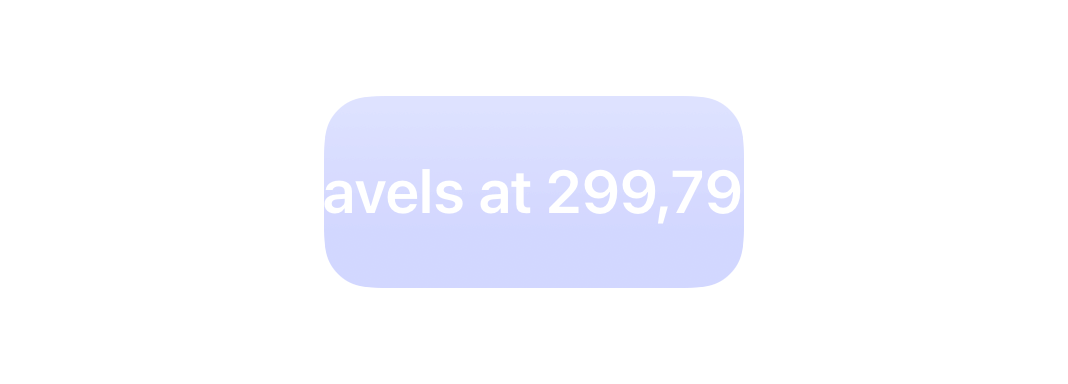
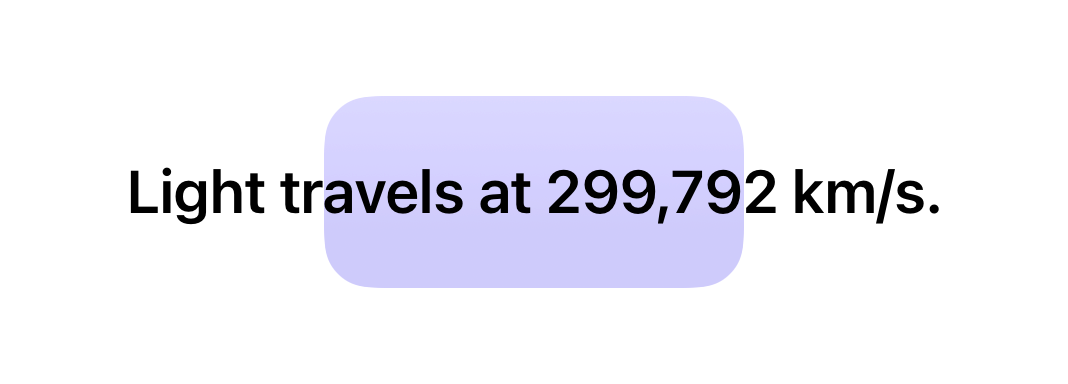
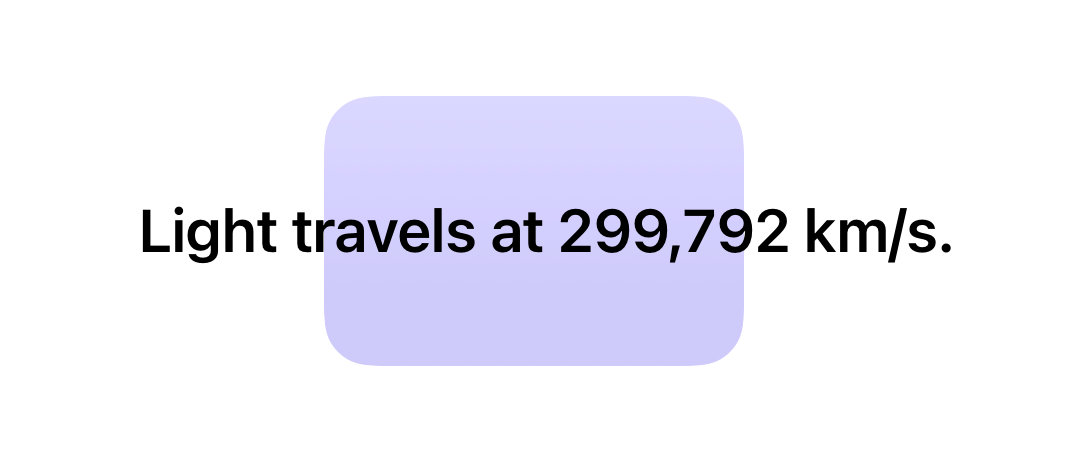
Since the view no longer receives the parent's proposal, the space the parent offers stops limiting its size, and the view can end up larger than its parent. A text view, for example, keeps its content on a single line even in a frame narrower than that line, and the frame centers it, so the text extends beyond both edges.
Text("Light travels at 299,792 km/s.")
    .padding()
    .fixedSize()
    .frame(width: 140, height: 64)
    .background(FrameFill())
The fixedSize(horizontal:vertical:) variant applies the same change to selected axes. Along an axis passed as true, the proposal becomes unspecified, and along an axis passed as false, the parent's proposal passes through unchanged. Fixing only the vertical axis of a text view lets it wrap within the proposed width, while its height follows from the number of lines it needs rather than from the proposed height.
Text("Light from the Sun takes about eight minutes to reach Earth.")
    .padding()
    .fixedSize(horizontal: false, vertical: true)
    .frame(width: 220, height: 60)
    .background(FrameFill())

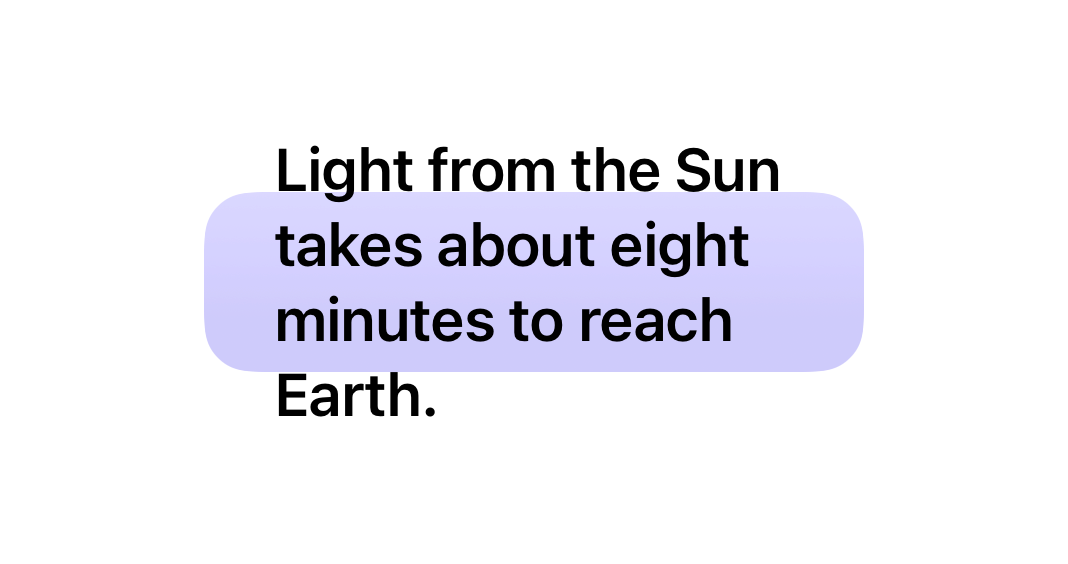
Text fixed this way keeps all of its lines instead of truncating to fit a limited height. This per-axis form is useful for text that should wrap to the available width but never truncate, such as descriptions in layouts that grow with Dynamic Type, as long as the surrounding layout can accommodate the full height.
Work with SwiftUI. Not against it.$35
A field guide to SwiftUI patterns and anti-patterns
The SwiftUI Way
- Avoid common SwiftUI pitfalls
- Build deeper intuition for the framework
- Gain insights from a former SwiftUI Engineer at Apple
Work with SwiftUI. Not against it.
A field guide to SwiftUI patterns and anti-patterns
The SwiftUI Way
# Ideal size resolution in built-in views
A view modified with fixedSize() takes its ideal size, the size it reports for an unspecified proposal, so the modifier's effect depends on how each view resolves that size. Views that display content derive their ideal size from that content. A text view reports the size of its content laid out on a single line, with explicit line breaks preserved. A non-resizable image reports its natural size for every proposal, so fixedSize() has no visible effect on it.
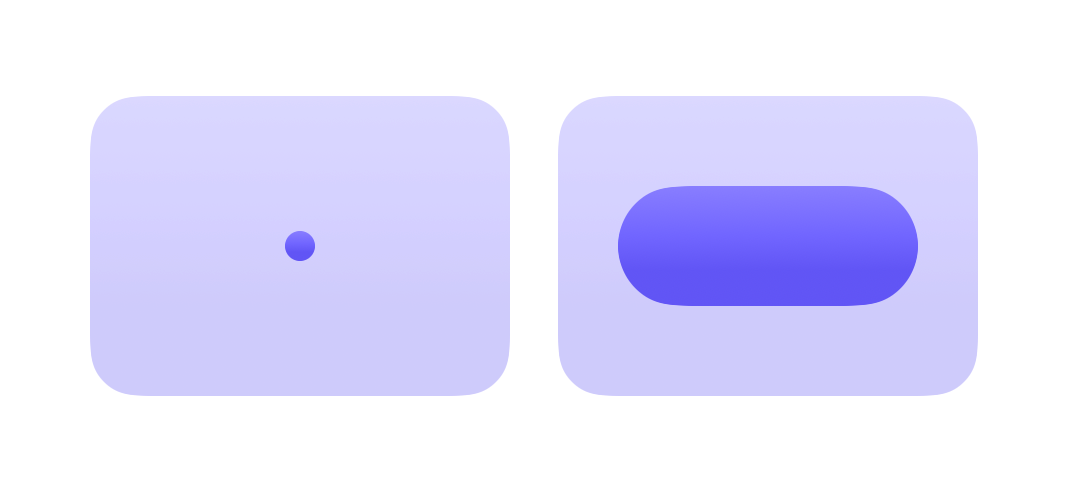
Shapes, colors and resizable images are flexible and take the size they're proposed. Shapes and colors have no content to measure, so for an unspecified proposal they report a default size of 10 by 10 points, while a resizable image falls back to the natural size of its image. When a fixed size is applied to a shape, it collapses to that default. The frame(minWidth:idealWidth:maxWidth:minHeight:idealHeight:maxHeight:alignment:) modifier can supply an ideal size of our own, which the frame reports for an unspecified proposal in place of its child's. In the following example, the first capsule collapses to the default size, while the second reports the ideal size set by its frame.
HStack(spacing: 16) {
    Capsule()
        .fill(.indigo.gradient)
        .fixedSize()
        .frame(width: 140, height: 100)
        .background(FrameFill())

    Capsule()
        .fill(.indigo.gradient)
        .frame(idealWidth: 100, idealHeight: 40)
        .fixedSize()
        .frame(width: 140, height: 100)
        .background(FrameFill())
}
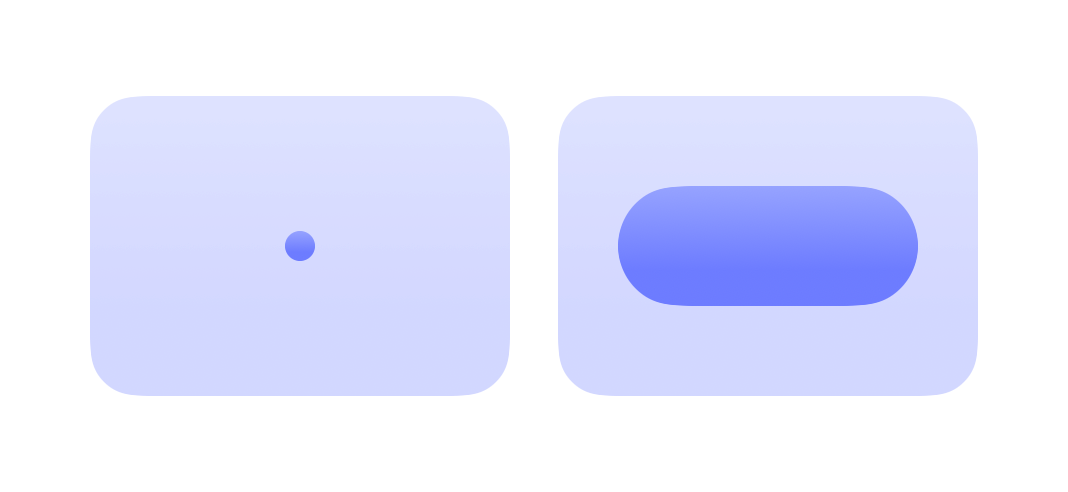
Layout containers derive their ideal size from the ideal sizes of their subviews. A stack combines its subviews' ideal sizes according to its arrangement, adding spacing between subviews along its primary axis.
As a result, fixing a container's size can let one subview determine a dimension for the others. When a stack's vertical size is fixed, it reports the height of its tallest subview at the proposed width and then proposes that height to all of its subviews, so a flexible shape matches the height of wrapped text beside it.
HStack {
    RoundedRectangle(cornerRadius: 16)
        .fill(.indigo.gradient)

    Text("Light from the Sun takes about eight minutes to reach Earth.")
        .padding()
}
.fixedSize(horizontal: false, vertical: true)
.frame(width: 300)

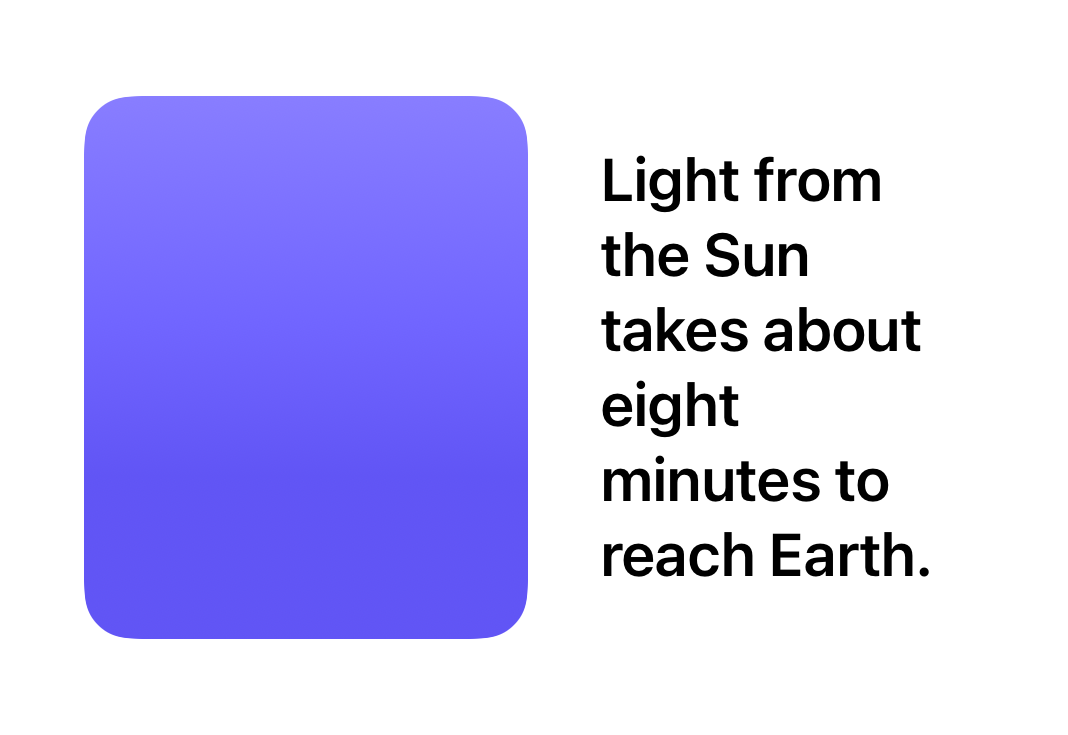
Without the fixed size, the stack would accept the full height proposed by its parent, and the shape would expand to fill it.
# Placement and overflow in the parent layout
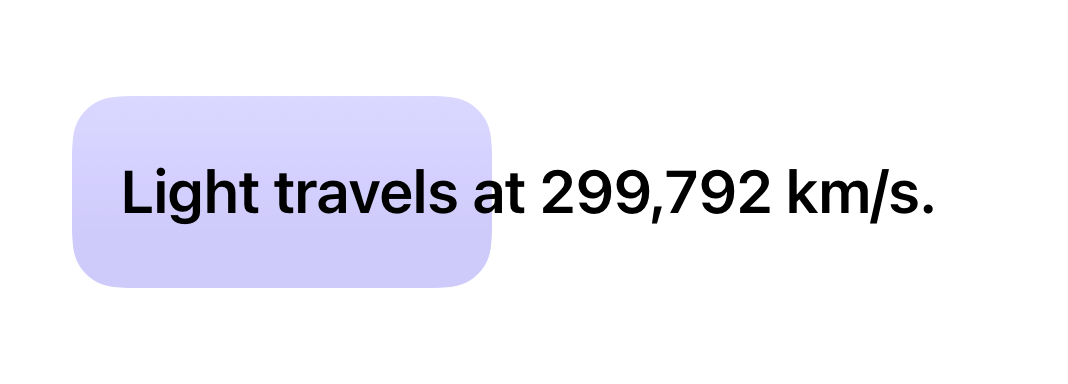
A view with a fixed size can report a size larger than the one its parent proposed. The parent accepts that size and aligns the view the same way it aligns any other child. Content beyond the parent's bounds is still drawn, since layout determines where views are placed but doesn't clip them, and it can overlap neighboring views.
Where the overflow appears depends on the parent's alignment. A centered view extends equally beyond both edges of its parent, while a leading-aligned view starts at the parent's leading edge and extends past the trailing edge only.
Text("Light travels at 299,792 km/s.")
    .padding()
    .fixedSize()
    .frame(width: 140, height: 64, alignment: .leading)
    .background(FrameFill())

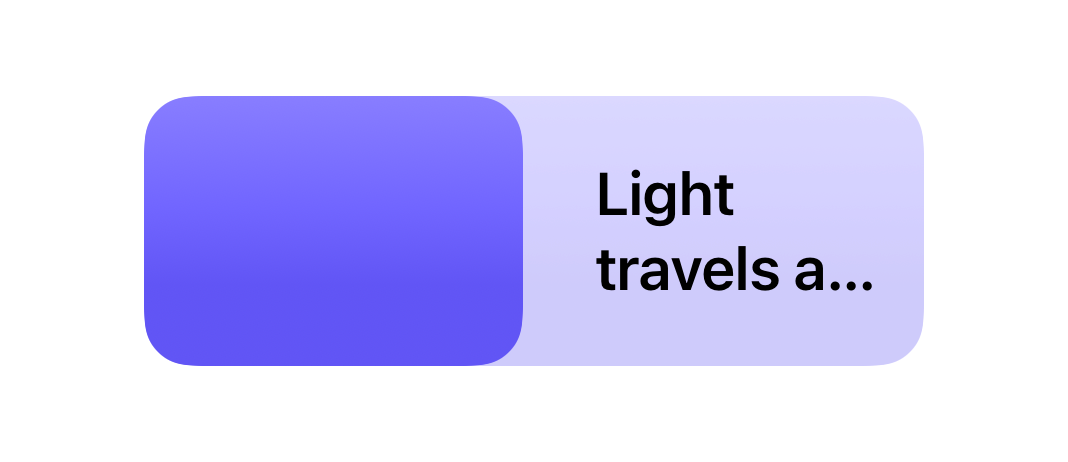
In a stack, a fixed size also affects how space is divided among siblings. When no fixed size is applied, a stack distributes its width among subviews that can shrink, so text placed next to a shape wraps and truncates within the share it receives.
HStack {
    RoundedRectangle(cornerRadius: 16)
        .fill(.indigo.gradient)

    Text("Light travels at 299,792 km/s.")
        .padding()
}
.frame(width: 260, height: 90)
.background(FrameFill())

A fixed size makes a subview inflexible, so the stack allocates that subview's ideal width first and gives the remaining space, if any, to its siblings. When that ideal width exceeds the available space, flexible siblings shrink to their minimum size, here zero for the rectangle, and the stack itself becomes wider than its frame, which centers it.
HStack {
    RoundedRectangle(cornerRadius: 16)
        .fill(.indigo.gradient)

    Text("Light travels at 299,792 km/s.")
        .padding()
        .fixedSize()
}
.frame(width: 140, height: 90)
.background(FrameFill())

Because fixedSize() takes away a view's ability to adapt to the space it's offered, the surrounding layout has to accommodate whatever size the view reports. The modifier fits best where that size is predictable or the container can grow with it, and calls for care in regions with fixed dimensions, where an ideal size that exceeds the available space overlaps neighboring content instead of adapting to it.
If you are looking to understand how SwiftUI sizes and positions views, my book SwiftUI Fundamentals takes a deep dive into the framework's layout system and other core principles to help you understand how it works under the hood and how to use it effectively in your projects. And if you are working with a coding agent, our Mac app SwiftFairy can review the layout code it writes. Its SwiftUI Layout & Resizability guidance checks how views are sized and how layouts adapt, right on your Mac.
For more resources on Swift and SwiftUI, check out my other books and book bundles.
Our Swift expertise, on call for your agent
On-device Swift and SwiftUI reviews with fix guidance
 Proper SwiftUI
 SwiftUI Layout & Resizability
 Performant Swift Charts
 Modern Swift