

Refreshing and animating views using TimelineView in SwiftUI
SwiftUI views typically update in response to data changes. TimelineView extends this model by reevaluating a view according to a timeline, making it possible to build interfaces that refresh periodically or change continuously without relying on explicit state changes.
SwiftUI includes built-in schedules for common update patterns, from minute-based refreshes to continuously changing visual effects. In this post we'll look at how these schedules work and how they can be used to drive updates in SwiftUI views.
# Creating a TimelineView
TimelineView is initialized with a schedule and a content closure. The schedule determines when SwiftUI should reevaluate the view, and the closure receives a context value that describes the current timeline update.
TimelineView(.everyMinute) { context in
    Text(context.date, format: .dateTime.hour().minute())
}
In this example, the everyMinute schedule tells SwiftUI to reevaluate the view at the beginning of every minute. The closure receives a TimelineView.Context value named context, whose date property contains the date associated with the current timeline update. Here, we use that date to display the current time.
# Updating views periodically
The everyMinute schedule works well for minute-based updates, but many interfaces need more control over update frequency. SwiftUI includes the periodic(from:by:) schedule for reevaluating a timeline view at regular intervals.
The from parameter defines the start date of the timeline, while by specifies the interval between updates.
TimelineView(.periodic(from: .now, by: 1)) { context in
    Text(context.date, format: .dateTime.hour().minute().second())
        .monospacedDigit()
}
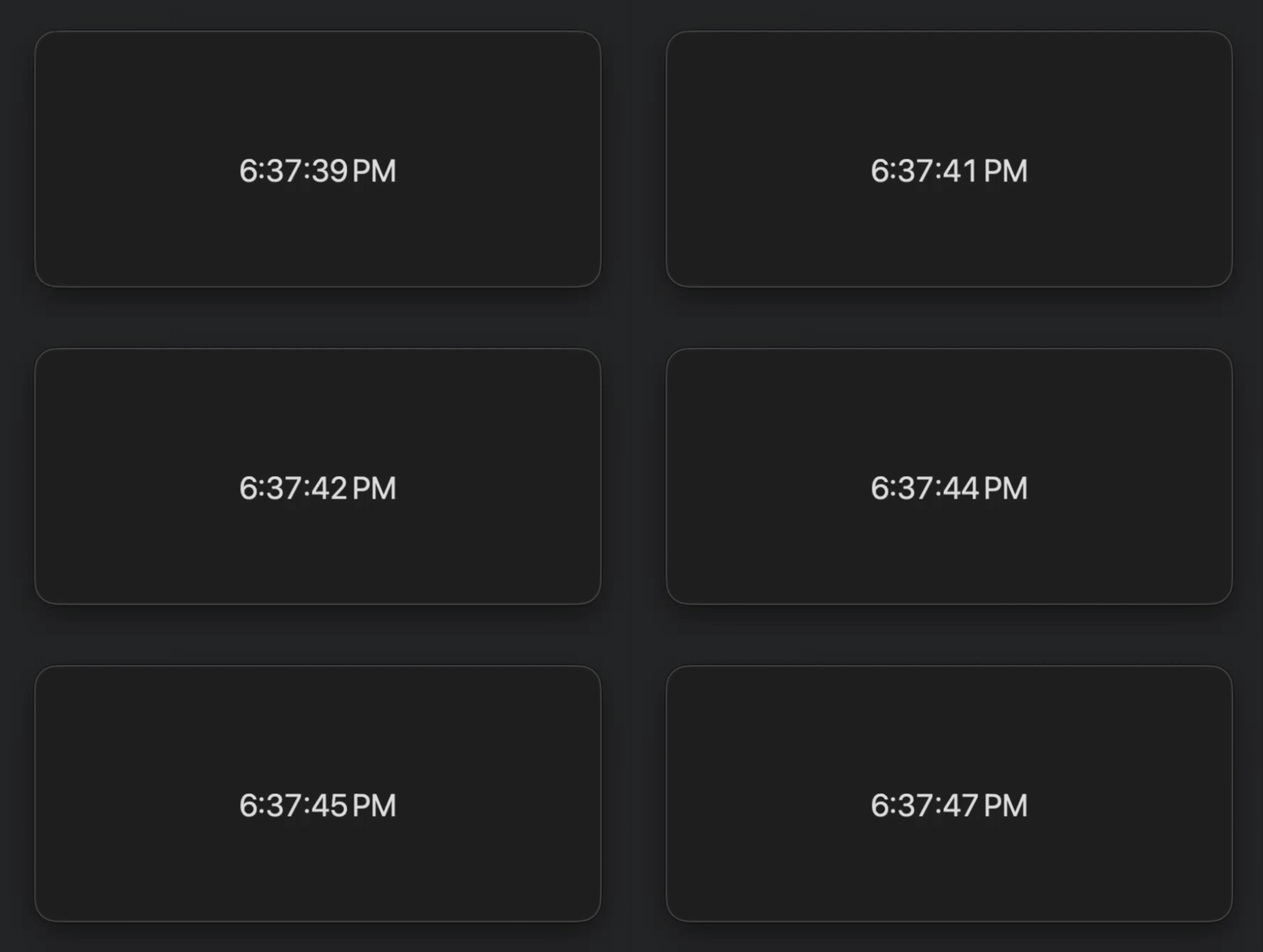
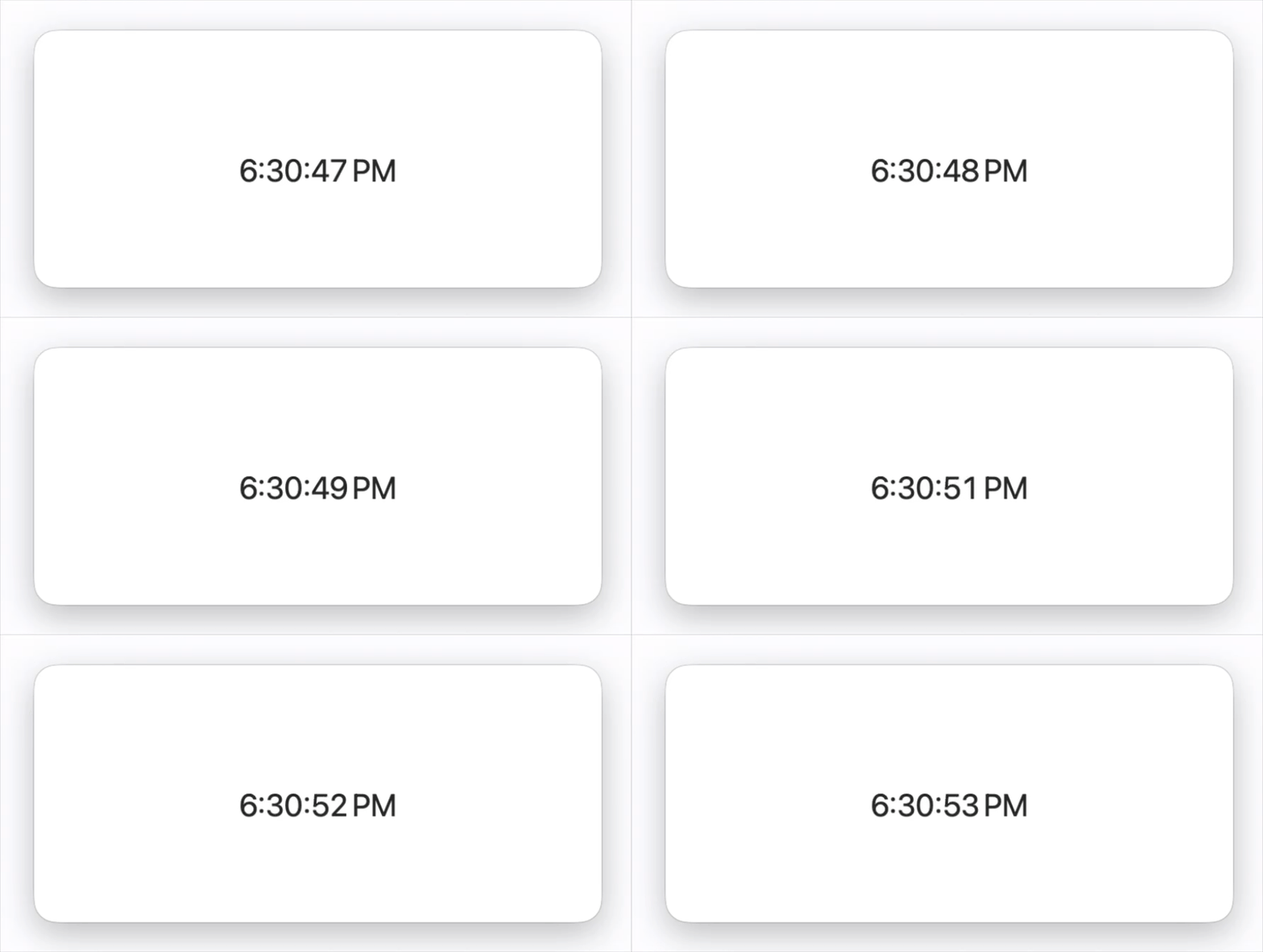
Here, the timeline starts at the current date and reevaluates once per second, allowing the displayed time to include seconds alongside hours and minutes.
# Driving animations with TimelineView
TimelineView can also be used to drive animations using the animation schedule. Rather than reevaluating the view at fixed intervals, the animation schedule updates the timeline at a rate suitable for animated content. It can also be configured with a minimum interval or paused entirely using animation(minimumInterval:paused:).
This schedule works well for self-updating visual elements, such as animated backgrounds, loading placeholders, and other effects that change continuously over time.
The following example uses the timeline date to animate a background color.
TimelineView(.animation) { context in
    let time = context.date.timeIntervalSinceReferenceDate
    let hue = (sin(time * 0.2) + 1) / 2

    Color(hue: hue, saturation: 0.7, brightness: 0.9)
}
As the timeline advances, the hue changes gradually, producing a color transition without storing animation progress in state.


The same idea can be extended to more advanced visual effects, including animated gradients and mesh gradients. I cover animating mesh gradients in more detail in another post, Mesh gradients in SwiftUI.
# Adapting to update cadence
So far, we have used the context value passed into the TimelineView closure to access the current date and drive updates over time. TimelineView.Context also includes a cadence value that describes how frequently SwiftUI expects the timeline to update.
In some environments, SwiftUI may reduce update frequency when high-frequency updates are unnecessary or unavailable. Views that depend on high-frequency updates can use cadence to adjust the amount of displayed detail.
TimelineView(.animation) { context in
    let format: Date.FormatStyle =
        context.cadence == .live
        ? .dateTime.hour().minute().second().secondFraction(.fractional(3))
        : .dateTime.hour().minute().second()

    Text(context.date, format: format)
        .monospacedDigit()
}
In this example, fractional seconds are shown only when the cadence is live. When updates become less frequent, the view falls back to displaying whole seconds.
# Choosing between TimelineView and Timer
TimelineView and Timer can both be used to respond to time-based changes, but they solve different problems.
While timers are often better suited to refreshing data, triggering background work, or coordinating non-view logic, interfaces whose content changes in response to time, such as clocks or continuously updating visuals, are a natural fit for TimelineView.
TimelineView provides a flexible way to build UI that updates over time, whether that means refreshing periodically, driving animations, or adapting to changing update cadence. That flexibility makes it suitable for a wide range of interfaces, from simple periodically refreshed views to more dynamic visual experiences.
If you are looking to build a strong foundation in SwiftUI, my book SwiftUI Fundamentals takes a deep dive into the framework's core principles and APIs to help you understand how it works under the hood and how to use it effectively in your projects. And my more recent book The SwiftUI Way helps you adopt recommended patterns, avoid common pitfalls, and use SwiftUI's native tools appropriately to work with the framework rather than against it.
For more resources on Swift and SwiftUI, check out my other books and book bundles.


Work with SwiftUI. Not against it.$35
A field guide to SwiftUI patterns and anti-patterns
The SwiftUI Way
- Avoid common SwiftUI pitfalls
- Build deeper intuition for the framework
- Gain insights from a former SwiftUI Engineer at Apple
Work with SwiftUI. Not against it.
A field guide to SwiftUI patterns and anti-patterns
The SwiftUI Way