

SwiftUI animation timing
The Animation type in SwiftUI describes the timing curve for a value change, controlling how quickly a value moves toward its destination and whether it overshoots before settling. We can apply it to a specific view using the animation(_:value:) modifier, or wrap a state change in withAnimation(::) to animate all affected views at once.
Rectangle()
    .frame(width: 100, height: 100)
    .scaleEffect(isExpanded ? 2 : 1)
    .animation(.default, value: isExpanded)
Since iOS 17, the default option is a spring animation with a configuration chosen by Apple. We can replace it with any other Animation value when we need more control over the timing. In this post we will look at the easing and spring animations that SwiftUI provides, as well as the CustomAnimation protocol for fully custom timing logic.
# Easing animations
Easing animations describe their timing curve using a cubic Bezier curve, which is defined by four points: two fixed endpoints at (0, 0) and (1, 1), and two control points that shape the curve between them. The position of the control points determines how the animation accelerates and decelerates, giving each preset its distinct character.
SwiftUI provides four named presets for easing animations, each corresponding to a specific control point configuration. Each preset is available as a static property with a default duration, and as a static method that accepts an explicit duration in seconds.
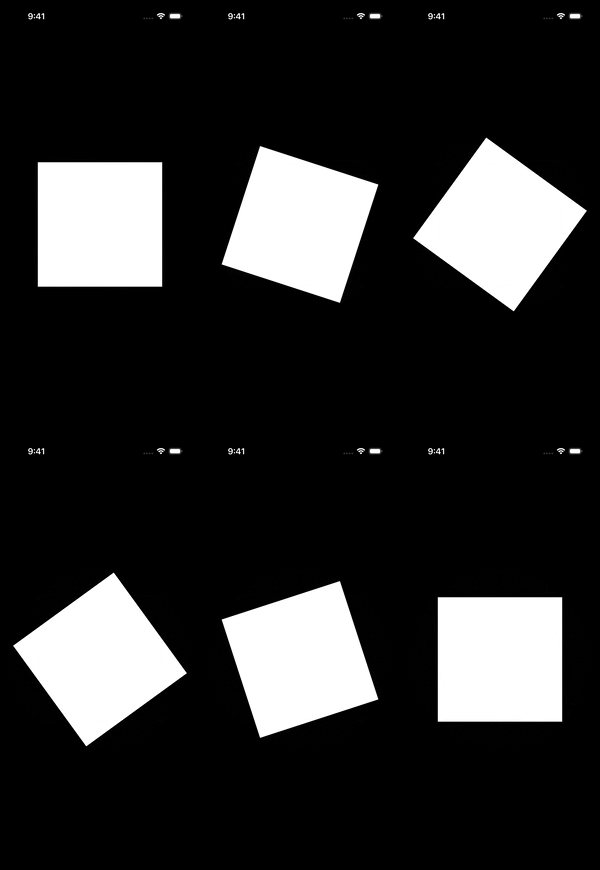
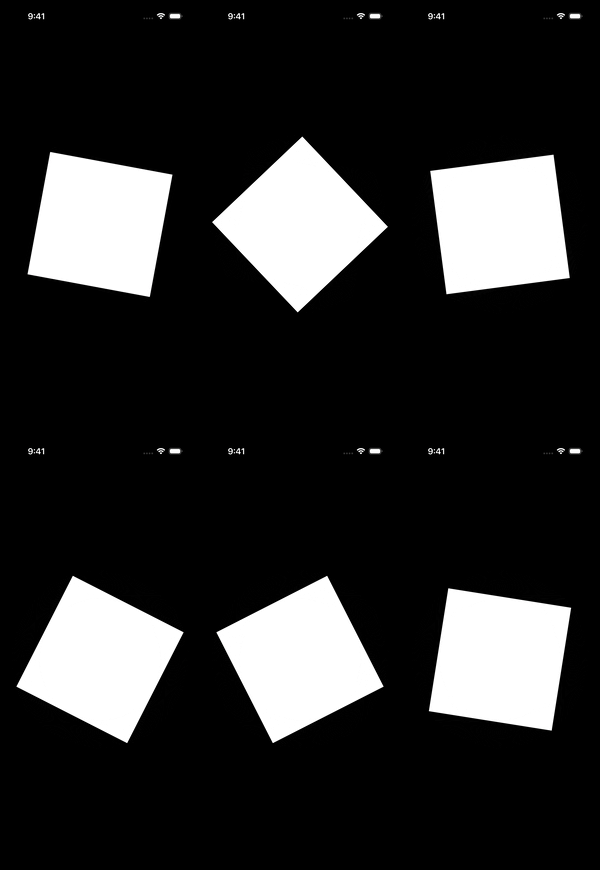
The linear preset places both control points directly on the endpoints, which means they have no pull on the curve at all, producing a constant slope throughout. The animation moves at the same speed from start to finish, which reads as mechanical in most UI contexts but is the right choice for things like a continuously rotating indicator where evenness is the point.
Rectangle()
    .frame(width: 250, height: 250)
    .rotationEffect(.degrees(isAnimating ? 360 : 0))
    .animation(.linear(duration: 6), value: isAnimating)
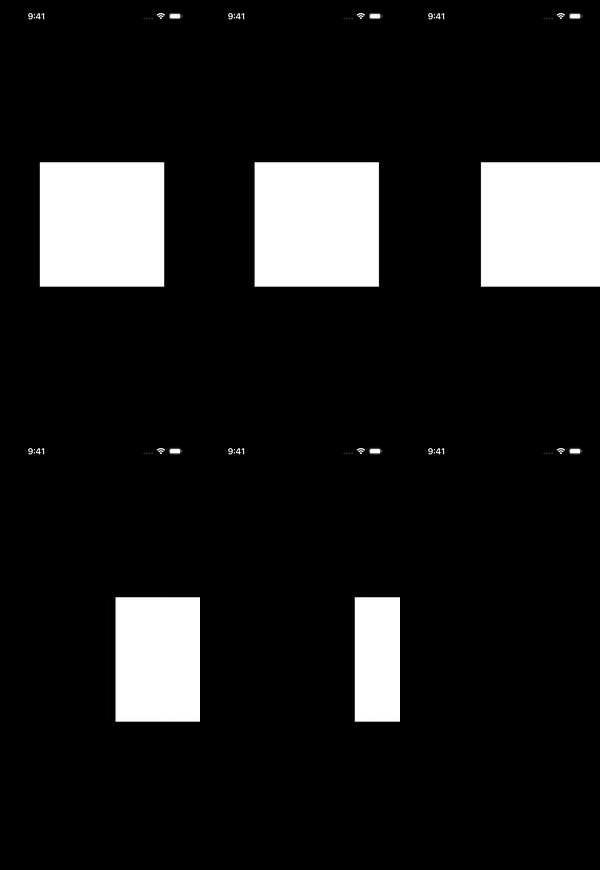
The easeIn preset moves the first control point to the right, flattening the start of the curve. The animation begins slowly and accelerates toward the end, which suits elements that are leaving the screen.
Rectangle()
    .frame(width: 250, height: 250)
    .offset(x: isVisible ? 0 : 340)
    .animation(.easeIn(duration: 2), value: isVisible)
The easeOut preset moves the second control point to the left, flattening the end. The animation arrives quickly and decelerates to a stop. This is the most commonly useful preset for elements entering or settling into a final position.
Rectangle()
    .frame(width: 250, height: 250)
    .offset(x: isVisible ? 0 : -340)
    .animation(.easeOut(duration: 2), value: isVisible)

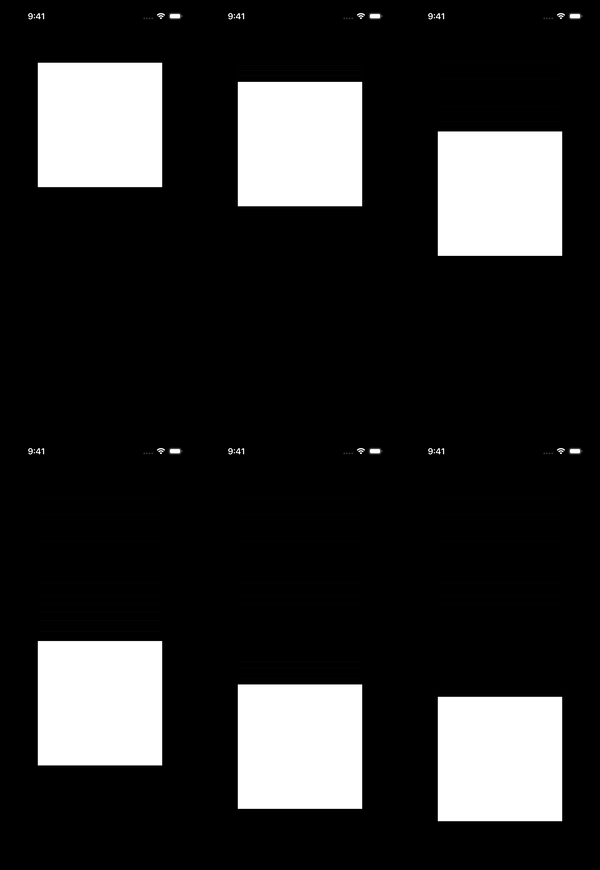
The easeInOut preset moves both control points inward, producing a curve that is shallow at both ends and steep in the middle. It works well for elements that move between two positions on screen, where both the departure and arrival benefit from a softer edge. Before iOS 17, this was the SwiftUI default.
Rectangle()
    .frame(width: 250, height: 250)
    .offset(y: hasMoved ? 200 : -200)
    .animation(.easeInOut(duration: 2), value: hasMoved)
# Custom timing curves
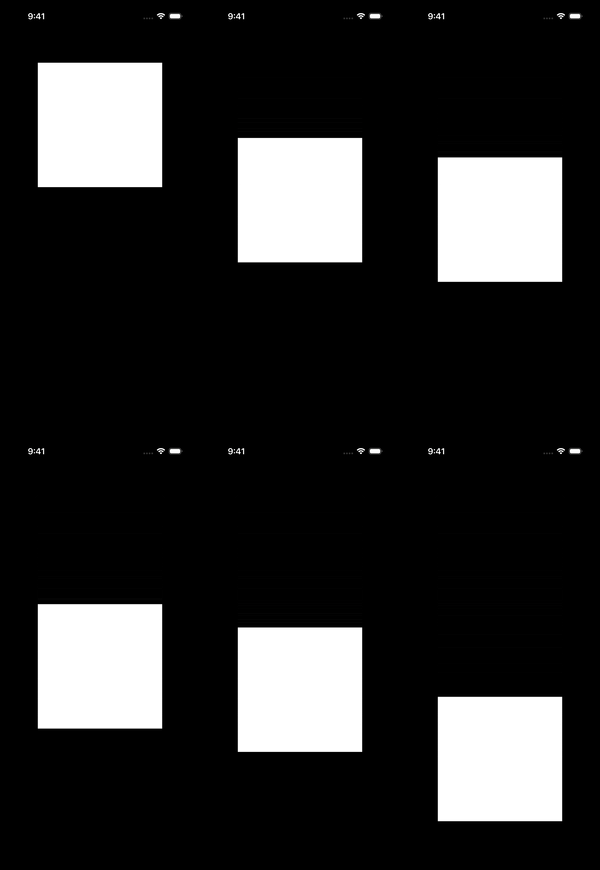
When the four named presets do not produce the exact curve we need, the timingCurve(_:duration:) method lets us specify a custom one. Since iOS 17, it takes a UnitCurve value, which is a type that represents a timing curve independently of any animation. We create a custom curve using bezier(startControlPoint:endControlPoint:), passing two UnitPoint values that define the control points of the cubic Bezier curve. The start control point influences how the curve leaves the origin, and the end control point influences how it arrives at the destination.
Rectangle()
    .frame(width: 250, height: 250)
    .offset(y: hasMoved ? 200 : -200)
    .animation(
        .timingCurve(.bezier(
            startControlPoint: UnitPoint(x: 0.2, y: 0.8),
            endControlPoint: UnitPoint(x: 0.8, y: 0.2)
        ), duration: 2),
        value: hasMoved
    )
Prior to iOS 17, the same result was achievable using timingCurve(_:_:_:_:duration:), which takes the four control point values as raw Double arguments directly.
UnitCurve also comes with its own named presets that we can pass directly to timingCurve(_:duration:). The Bezier-based ones mirror the Animation presets we already covered: easeIn, easeOut, and easeInOut.
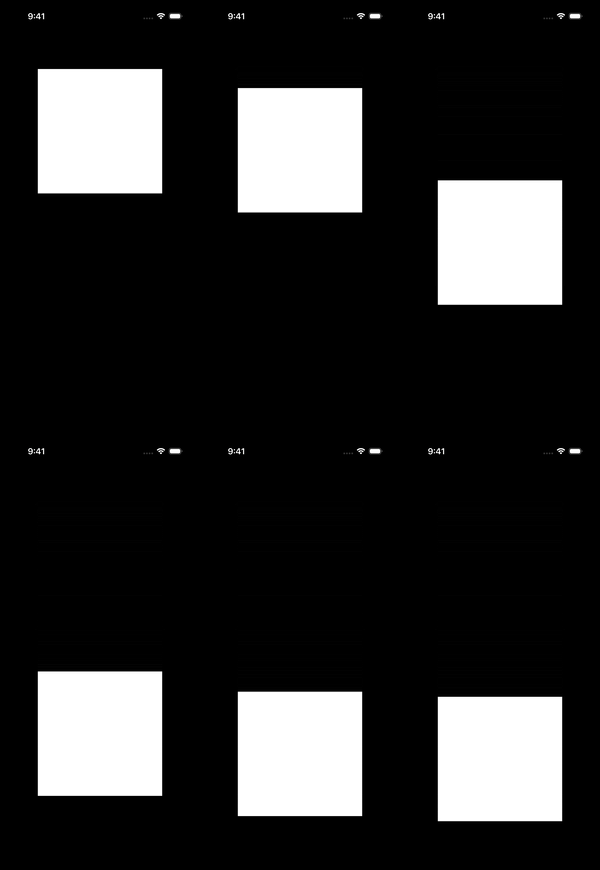
Alongside those, UnitCurve provides three circular variants: circularEaseIn, circularEaseOut, and circularEaseInOut. Where the Bezier-based curves are defined by control points, the circular variants use a quarter circle arc as their underlying shape. This produces a more aggressive acceleration and deceleration than their Bezier equivalents, which can feel snappier in practice.
Rectangle()
    .frame(width: 250, height: 250)
    .offset(y: hasMoved ? 200 : -200)
    .animation(
        .timingCurve(.circularEaseInOut, duration: 2),
        value: hasMoved
    )
# Spring animations
Unlike easing animations, which follow a fixed mathematical curve, spring animations simulate a physical object attached to a spring. On every frame, SwiftUI applies two forces: the spring force pulls the object toward its destination, and the damping force opposes its motion.
The balance between these forces determines the character of the animation. When the damping force is strong enough, the object reaches its destination without overshooting. When it is weaker, the object overshoots and oscillates back and forth before settling. SwiftUI provides three named presets, smooth, snappy, and bouncy, that correspond to specific points along this spectrum.
The smooth preset is a critically damped spring: the damping force is exactly strong enough to prevent any overshoot. The object reaches its destination as quickly as possible without crossing it, producing a clean, settled arrival.
Rectangle()
    .frame(width: 250, height: 250)
    .offset(x: isVisible ? 0 : -340)
    .animation(.smooth, value: isVisible)

The snappy preset is slightly underdamped, producing a small overshoot before settling. The subtle elasticity gives it a more lively feel than smooth.
Rectangle()
    .frame(width: 250, height: 250)
    .offset(x: isVisible ? 0 : -340)
    .animation(.snappy, value: isVisible)

The bouncy preset is more underdamped, producing a clearly visible overshoot and a brief oscillation before settling. It draws attention to the motion itself and suits moments where a playful, energetic feel is appropriate.
Rectangle()
    .frame(width: 250, height: 250)
    .offset(x: isVisible ? 0 : -340)
    .animation(.bouncy, value: isVisible)

# Customizing spring animations
SwiftUI provides several ways to customize the character of a spring animation, from adjusting the built-in presets to specifying the spring parameters directly.
Each of the three spring presets discussed earlier has a corresponding static method that accepts a duration and extraBounce parameter. The duration parameter controls how long the spring takes to settle, and extraBounce adds on top of the preset's default bounce value. A small positive value nudges a preset slightly bouncier, while a larger one can make bouncy feel even more energetic.
Rectangle()
    .frame(width: 250, height: 250)
    .offset(x: isVisible ? 0 : -340)
    .animation(
        .bouncy(duration: 0.5, extraBounce: 0.2),
        value: isVisible
    )

When the presets do not provide enough control, spring(duration:bounce:blendDuration:) and spring(response:dampingFraction:blendDuration:) let us define the spring character directly, using either the duration/bounce model or the response/dampingFraction model. For gesture-driven interactions, interactiveSpring(response:dampingFraction:blendDuration:) offers defaults tuned to feel nearly instant, while interpolatingSpring(duration:bounce:initialVelocity:) accumulates the effects of overlapping animations rather than replacing them.
# Custom animations
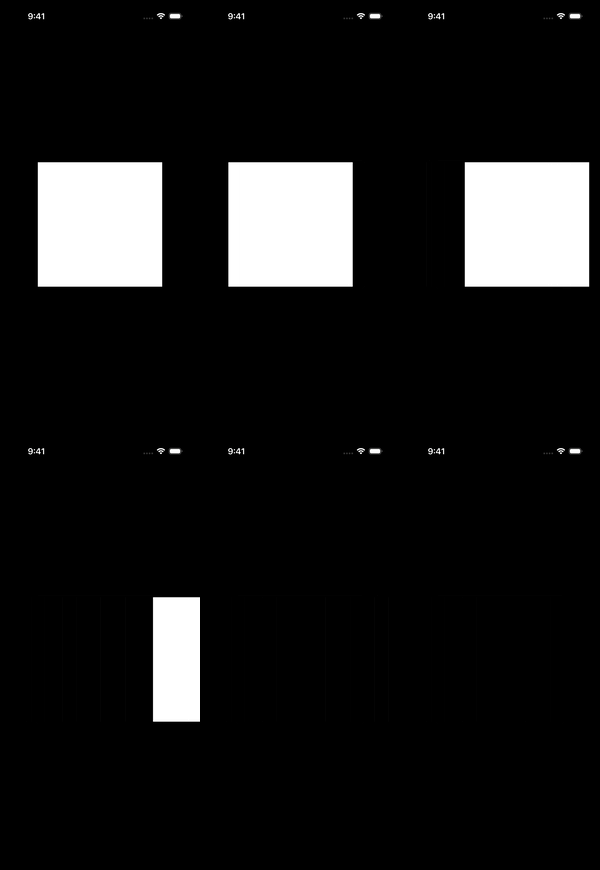
In situations where we cannot achieve the desired animation through the built-in timing options, we can use the CustomAnimation protocol, available from iOS 17, to implement the timing logic ourselves. The protocol has one required method, animate(value:time:context:), which SwiftUI calls on every frame with the value being animated and the time elapsed since the animation started, expecting back the interpolated value at that moment, or nil once the animation is complete.
The following example uses CustomAnimation to implement a slingshot curve, where the view briefly pulls back before shooting toward its destination.
struct SlingshotAnimation: CustomAnimation {
    let duration: TimeInterval = 0.6

    func animate<V: VectorArithmetic>(
        value: V,
        time: TimeInterval,
        context: inout AnimationContext<V>
    ) -> V? {
        guard time <= duration else { return nil }
        let t = time / duration
        let curve = t * t * (3 - 2 * t) + sin(t * .pi) * -0.3
        return value.scaled(by: curve)
    }
}

extension Animation {
    static var slingshot: Animation {
        Animation(SlingshotAnimation())
    }
}
Wrapping the conforming type in an Animation extension makes it available as a static property, the same pattern used by the built-in presets.
Rectangle()
    .frame(width: 250, height: 250)
    .offset(x: isVisible ? 0 : 340)
    .animation(.slingshot, value: isVisible)
# Animation modifiers
All Animation values, whether easing, spring, or custom, support a set of modifiers that adjust their behavior without changing their underlying timing curve. These modifiers chain directly onto any animation value and can be combined in any order.
The delay(_:) modifier postpones the start of the animation by a given number of seconds, which is useful when staggering multiple elements so each one begins slightly after the previous one.
VStack(spacing: 16) {
    Rectangle()
        .frame(width: 250, height: 80)
        .offset(x: showRects ? 0 : -340)
        .animation(.smooth, value: showRects)

    Rectangle()
        .frame(width: 250, height: 80)
        .offset(x: showRects ? 0 : -340)
        .animation(.smooth.delay(0.15), value: showRects)

    Rectangle()
        .frame(width: 250, height: 80)
        .offset(x: showRects ? 0 : -340)
        .animation(.smooth.delay(0.3), value: showRects)
}

The speed(_:) modifier scales the duration of the animation by a factor, where 2.0 makes it run twice as fast and 0.5 makes it run at half speed. It is useful for reusing the same animation curve at different speeds without defining a new one.
Rectangle()
    .frame(width: 250, height: 250)
    .offset(x: isVisible ? 0 : -340)
    .animation(.bouncy.speed(2), value: isVisible)

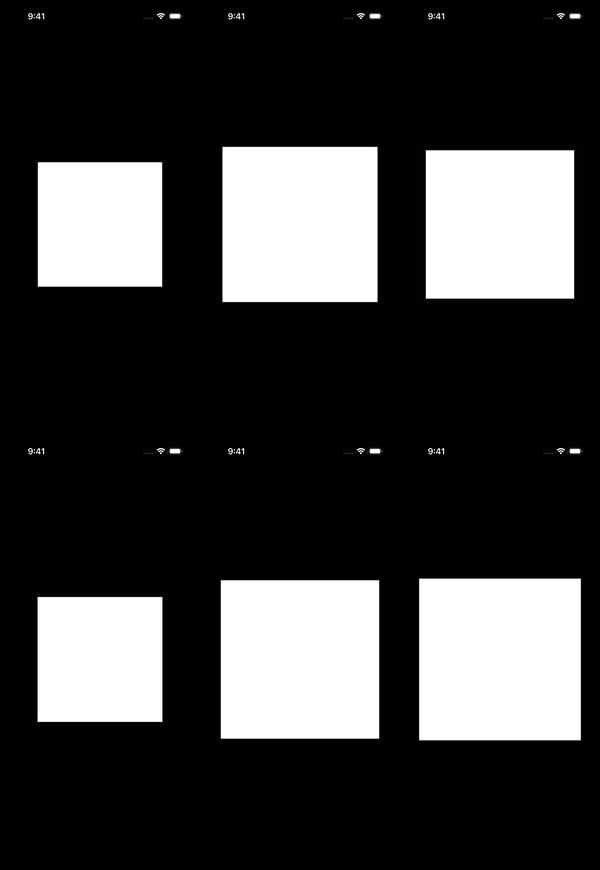
The repeatCount(_:autoreverses:) modifier runs the animation a specific number of times. When autoreverses is true, the animation alternates direction on each repetition. When it is false, the animated value jumps back to its start position between each cycle.
Rectangle()
    .frame(width: 250, height: 250)
    .scaleEffect(isAnimating ? 1.3 : 1)
    .animation(
        .easeInOut(duration: 0.4).repeatCount(3, autoreverses: true),
        value: isAnimating
    )
The repeatForever(autoreverses:) modifier works the same way but continues indefinitely. Setting autoreverses to false is common for continuous looping animations, like a rotating indicator, where the motion should cycle seamlessly.
Rectangle()
    .frame(width: 250, height: 250)
    .rotationEffect(.degrees(isAnimating ? 360 : 0))
    .animation(
        .linear(duration: 4).repeatForever(autoreverses: false),
        value: isAnimating
    )
Animation timing in SwiftUI covers more ground than it might initially appear. The built-in options alone span a wide range of motion models, and the ability to implement custom timing logic or compose modifiers on top of any animation gives us a lot of room to work with. Knowing what each option models and when to reach for it makes it easier to produce motion that feels considered.
If you are looking to build a strong foundation in SwiftUI, my book SwiftUI Fundamentals takes a deep dive into the framework's core principles and APIs to help you understand how it works under the hood and how to use it effectively in your projects. And my more recent book The SwiftUI Way helps you adopt recommended patterns, avoid common pitfalls, and use SwiftUI's native tools appropriately to work with the framework rather than against it.
For more resources on Swift and SwiftUI, check out my other books and book bundles.
Work with SwiftUI. Not against it.$35
A field guide to SwiftUI patterns and anti-patterns
The SwiftUI Way
- Avoid common SwiftUI pitfalls
- Build deeper intuition for the framework
- Gain insights from a former SwiftUI Engineer at Apple
Work with SwiftUI. Not against it.
A field guide to SwiftUI patterns and anti-patterns
The SwiftUI Way